We use cookies to enhance your experience

    We use cookies to show coaches near you, remember your preferences, and improve our platform. Privacy Policy

    Booking Sessions

    Learn how to book, manage, reschedule, and cancel coaching sessions.

    Overview

    FitConnect makes it easy to book sessions with your coaches 24/7. Whether you prefer online video sessions or in-person training, you can manage all your bookings from your dashboard.

    Booking a Session

    1

    Go to the coach's profile

    Navigate to your connected coach's profile or click "Book Session" from your dashboard.
    2

    Select a session type

    Choose from the available session types offered by the coach. Options may include:
    • Initial consultation (often free)
    • Standard training session
    • Extended session
    • Specialised sessions (e.g., nutrition review)
    3

    Choose online or in-person

    Select whether you want an online video session or an in-person meeting. For in-person, confirm the location.
    4

    Pick a date and time

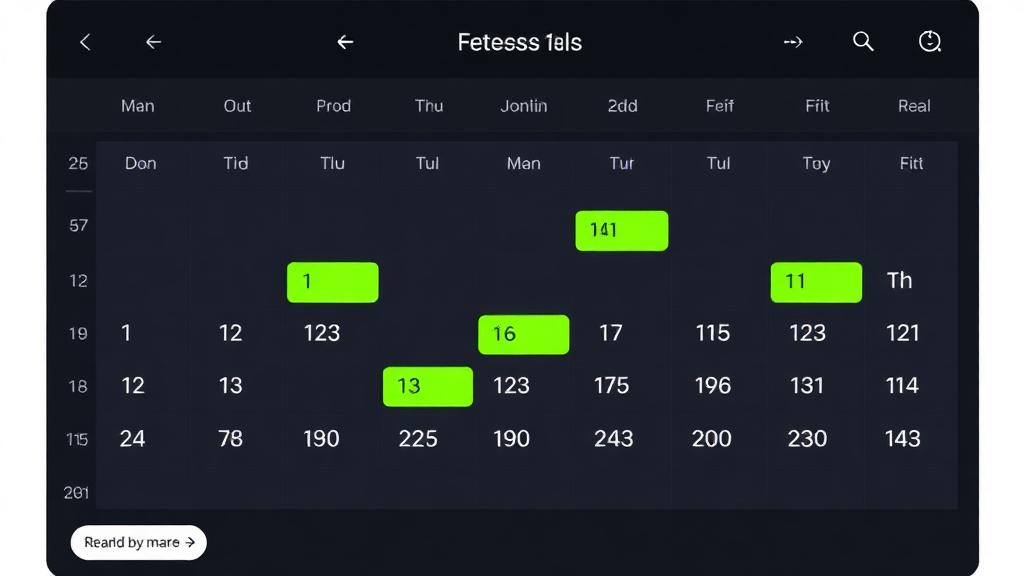
    View the coach's availability calendar and select an open slot. The calendar shows:
    • Available slots in green
    • Booked slots greyed out
    • Times in your local timezone
    Booking calendar showing available time slots
    Select an available time slot from the coach's calendar
    5

    Confirm and pay

    Review the booking details and confirm. If payment is required, you'll be directed to the secure checkout.

    Pro Tip

    Book recurring sessions at the same time each week for consistency. Many coaches offer package discounts for multiple sessions.

    Session Packages

    Many coaches offer session packages at discounted rates. Packages typically include:

    • 5-session pack: Good for trying out a coach
    • 10-session pack: Popular choice for 2-3 months of training
    • 20-session pack: Best value for committed clients

    Purchasing a Package

    1

    View coach's packages

    Go to the coach's profile and scroll to the "Packages" section.
    2

    Select a package

    Choose the package that fits your needs and budget.
    3

    Complete purchase

    Pay through secure checkout. Sessions are added to your account immediately.
    4

    Book sessions

    Use your package credits to book individual sessions from the coach's calendar.

    Note

    Package sessions typically have an expiry date (e.g., 90 days). Check the package terms before purchasing.

    Managing Your Bookings

    View and manage all your sessions from the "Sessions" page in your dashboard.

    Upcoming Sessions

    See all your scheduled sessions with date, time, coach name, and session type. Click on any session for more details or to make changes.

    Past Sessions

    Review your session history, including completed and cancelled sessions.
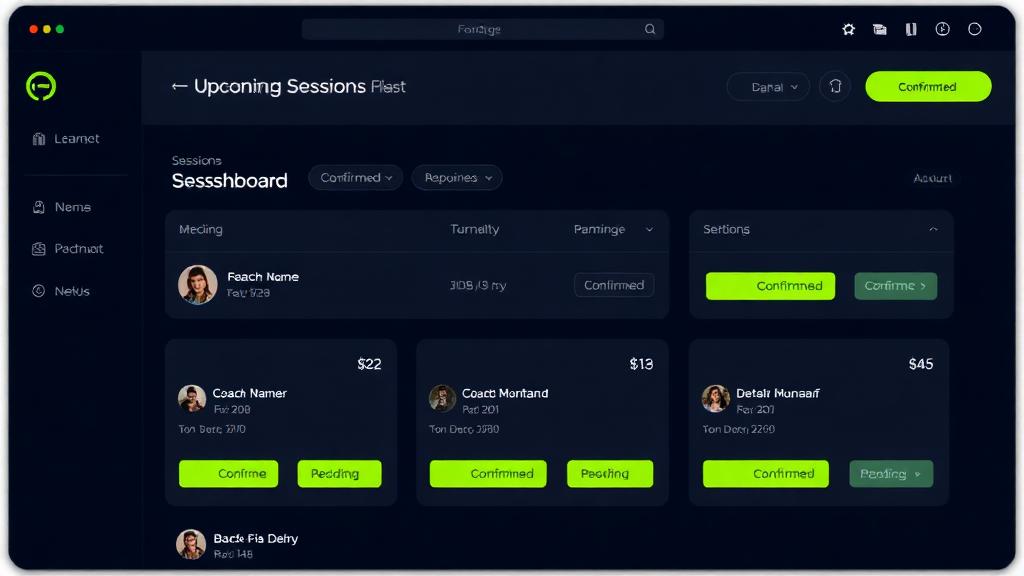
    Sessions dashboard showing upcoming and past sessions
    Your sessions dashboard

    Rescheduling Sessions

    Need to change your session time? Here's how to reschedule:

    1

    Open the session

    Go to Sessions in your dashboard and click on the session you want to reschedule.
    2

    Click Reschedule

    Click the "Reschedule" button to open the rescheduling modal.
    3

    Pick a new time

    Select a new date and time from the coach's available slots.
    4

    Confirm

    Confirm the new time. Both you and your coach will receive notifications.

    Warning

    Most coaches require at least 24 hours notice for rescheduling. Check your coach's policy before making changes.

    Cancelling Sessions

    If you need to cancel a session:

    1

    Open the session

    Go to Sessions and click on the session you need to cancel.
    2

    Click Cancel

    Click the "Cancel" button.
    3

    Select a reason

    Choose a cancellation reason from the dropdown.
    4

    Confirm cancellation

    Confirm your cancellation. If within the 24-hour window, you'll see a warning about potential fees.

    24-Hour Cancellation Policy

    Most coaches have a 24-hour cancellation policy. Cancelling within 24 hours of a session may result in forfeiting the session or being charged a cancellation fee. Always check your coach's specific policy.

    Joining Online Sessions

    For online video sessions:

    1

    Check your equipment

    Ensure you have a stable internet connection, working webcam, and microphone.
    2

    Find the meeting link

    The video meeting link will appear in your session details. You'll also receive reminder emails with the link.
    3

    Join on time

    Click "Join Meeting" a few minutes before your scheduled time to test your setup.
    4

    Have space ready

    For training sessions, ensure you have enough space to exercise safely.

    Pro Tip

    Test your video and audio before your first session. Most video platforms have a "test call" feature.

    Tips for Great Sessions

    Be prepared

    Review your plan before the session and have any questions ready to discuss.

    Arrive on time

    Join online sessions 2-3 minutes early. For in-person, arrive 5-10 minutes early.

    Communicate openly

    Tell your coach about any discomfort, injuries, or concerns during the session.

    Take notes

    Write down key points after your session to remember what you discussed.