
PT Earnings & Stripe Payments | Get Paid as a Coach
Set up Stripe payments, track coaching earnings and manage your personal training finances. Accept payments from UK clients.
Overview
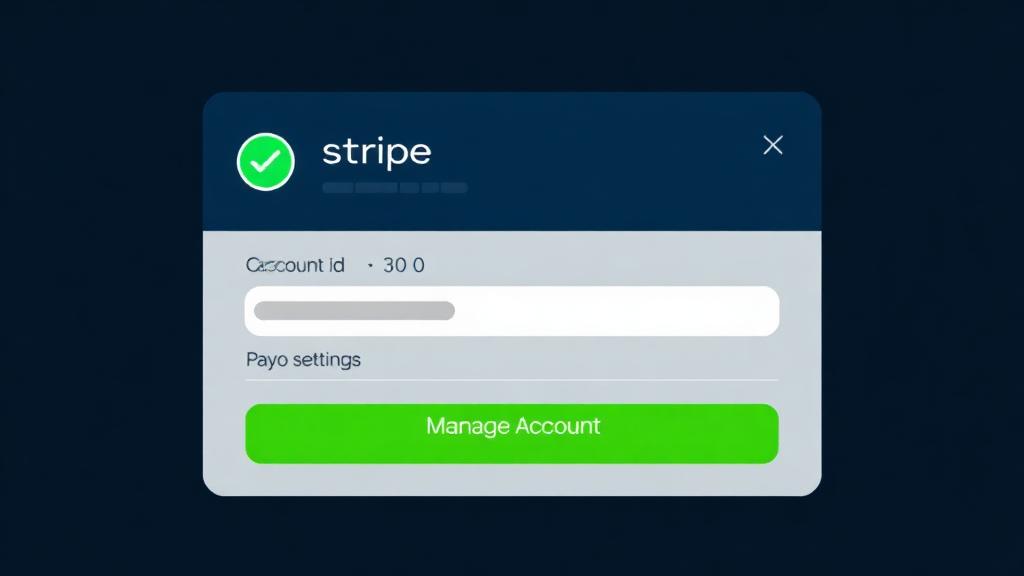
FitConnect uses Stripe to process all payments. When clients purchase sessions, packages, or subscriptions, the payment goes through Stripe and is deposited directly into your connected bank account.
This guide covers setting up Stripe, understanding platform fees, and tracking your earnings.
Setting Up Stripe
Follow these steps to connect your Stripe account:
Navigate to Settings
Find Payment Settings
Click Connect with Stripe
Create or log in to Stripe
Provide business information
- Your legal name and date of birth
- Business type (individual/sole trader for most coaches)
- Business address
- Bank account details for deposits
Complete verification
Return to FitConnect
Note
Understanding Platform Fees
FitConnect charges a commission on client payments that varies by your subscription tier:
| Plan | Monthly Cost | Commission | You Keep |
|---|---|---|---|
| Free | £0 | 4% | 96% |
| Starter | £19 | 3% | 97% |
| Pro | £49 | 2% | 98% |
| Enterprise | £99 | 1% | 99% |
Example Calculation
If a client pays £100 for a session and you're on the Pro plan (2% commission):
- Client pays: £100
- Platform fee (2%): £2
- Stripe processing fee (~2.9% + 20p): ~£3.10
- You receive: ~£94.90
Pro Tip
Tracking Your Earnings
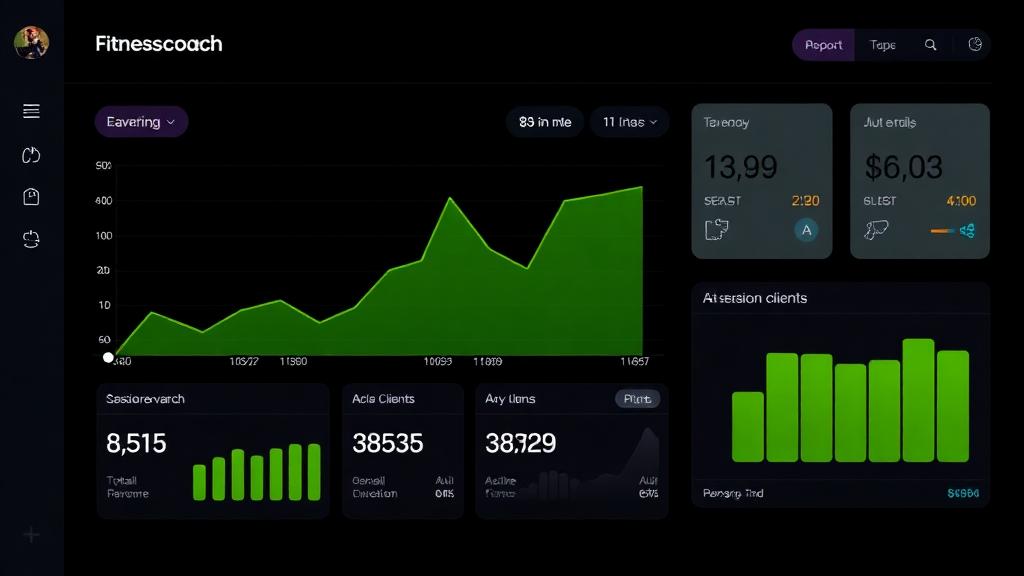
Monitor your earnings from the Earnings page in your dashboard:
Dashboard Metrics
- Total Revenue: Gross amount from all client payments
- Net Earnings: Amount after platform and Stripe fees
- Pending Payouts: Funds being processed by Stripe
- This Month: Current month's earnings
Transaction History
View detailed records of all transactions including:
- Client name and purchase type
- Date and amount
- Fee breakdown
- Payout status
Receiving Payouts
Stripe automatically transfers your earnings to your bank account:
Payout Schedule
- Payouts are processed automatically
- Standard timing is 2-7 business days after payment
- Payout frequency depends on your Stripe settings (daily, weekly, monthly)
Managing Payout Settings
Access Stripe Dashboard
Go to Balance → Payouts
Adjust schedule
Note
Tax Considerations
As a coach receiving payments, you're responsible for managing your own taxes:
Record Keeping
- FitConnect provides transaction records you can export
- Stripe provides tax-ready reports and 1099 forms (in applicable regions)
- Keep records of all business expenses for deductions
VAT/GST
If you're VAT registered, you can configure VAT settings in Stripe. Stripe Tax can automatically calculate and collect VAT where required.
Warning
Troubleshooting
Stripe connection failed
If the connection process fails, try again from Settings. Ensure you complete all required fields in Stripe's onboarding flow.
Payout delayed
Check your Stripe dashboard for any verification requirements or holds. New accounts may have longer initial payout delays.
Client payment failed
Payment failures are usually due to insufficient funds or card issues on the client's side. Ask them to try a different payment method.
Need to change bank account
Update your bank details directly in your Stripe dashboard under Settings → Bank accounts and scheduling.
Subscribing on Mobile (iOS & Android)
FitConnect is available as a native mobile app on iOS (App Store) and Android (Google Play). If you subscribe to a coach plan through the mobile app, the payment process differs from web:
How Mobile Subscriptions Work
- iOS: Subscriptions are processed through Apple's App Store using In-App Purchase (StoreKit)
- Android: Subscriptions are processed through Google Play Billing
- Web: Subscriptions are processed through Stripe
Key Differences
- Mobile subscriptions are managed by Apple/Google, not Stripe
- Renewal and cancellation happen through your device's subscription settings
- Pricing may vary slightly due to app store currency conversion
- Your subscription tier syncs automatically across all platforms
Note
Known Limitations
Cross-platform billing: If you subscribed on mobile, you cannot switch to Stripe billing without first cancelling your App Store/Play Store subscription at the end of the billing period.
Last updated: 26 December 2024 — Added "Subscribing on Mobile" section covering iOS/Android In-App Purchase flows.